
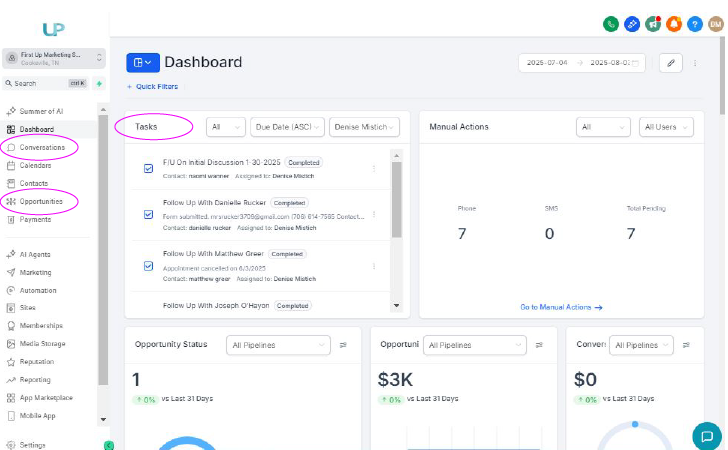
Welcome to your FirstUp CRM dashboard — your command center for managing leads, checking messages, completing tasks, and staying on top of follow-ups. Whether you’re in sales, reception, or support, this is where your workday begins.
In a separate post, we will dive into how this same system can help service businesses manage their schedule, automate communication (on-my-way messaging), streamline estimates and contracts, and so much more.
What You’ll See on the Dashboard
When you log in, you’ll land on the main dashboard where you will see important statistics, tasks, open conversations, and more. In this post, we will glance at the most commonly used modules.
Conversations
Your consolidated inbox, where all incoming texts, emails, and direct messages appear.
Use this area to:
- Read and reply to incoming messages
- Mark messages as read
- Block spam
- Make notes
What’s included?
- Web form submissions
- SMS (Text Messaging)
- Live Website Chat
- Facebook Messenger
- Instagram DMs
- Phone calls and voicemails
If you need additional integrations, let us know.
Opportunities
This is a snapshot of your pipeline — the stages your leads move through during their journey to becoming a customer. You can:
- View all leads and their current stage
- Move them to a new stage to update their status and trigger automation (very important).
- Identify which leads need follow-up
What’s Included?
The source of your leads will depend on your marketing strategy. We work with each client to determine the source, then use customized automated workflows to capture leads and add them to the pipeline. Here are the most common sources:
- Web form
- Inbound calls
- Emails
- Facebook & Instagram DMs
- Inbound SMS
- Facebook lead forms
- TikTok Lead forms
- Referrals
- LinkedIn lead forms
Tasks
Your personal to-do list, automatically or manually assigned. Tasks often include:
- Follow-ups
- Scheduled calls
- Reminders to update a record or send information
Contacts
Contacts and opportunities are two different types of records. Contact records can include leads, customers, vendors, networking contacts, etc. Opportunities should only include new leads OR opportunities created for existing customers. You can:
- View contact details and previous conversations
- Manage tasks
- Make notes
- View documents created in the CRM or uploaded to the record
- Add additional details, such as the company name
- View invoices and payments
- Use the Initial Contact Outcome field to manage the pipeline stage and additional record keeping, PLUS automated follow-up
- View and manage appointments
Calendar (if enabled)
Displays your upcoming appointments or bookings.
Use this to:
- See who’s scheduled for today
- Prepare for client calls or meetings
- Confirm attendance
- Book appointments
- Offer online booking
Daily Use Checklist
Follow this routine to stay on track:
- Check Conversations
Read and respond to new messages. - Review and Complete Tasks
Check today’s due items and mark them complete when finished. - Update the Pipeline
Move leads to the correct stage to reflect the latest status. This keeps the record accurate and triggers any necessary automation. - Use the Initial Contact Outcome Field
If you’re working within the contact record, instead of the pipeline or conversations, use this field to record the outcome. - Check the Calendar (if used)
Look for appointments that need confirmation or prep.
Tips for Staying Organized
- Bookmark your login page for easy access each morning.
- Work from the dashboard daily to prevent leads from being missed or delayed.
- As you work your leads, update the pipeline stage or the Initial Contact Outcome field, and FirstUp will handle most of the record maintenance automatically.